Create video

Model
Magi 2Sand AI1080p
Input mode
0 / 15,000
Advanced settings
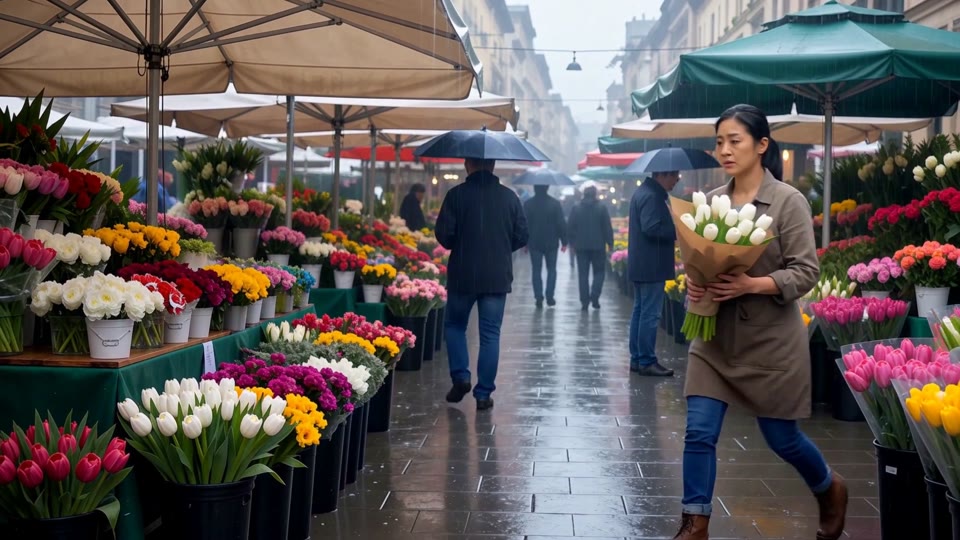
A florist carrying white tulips through a rainy market

After the Rain

Text to video · Magi 2 showcase

Magi 2 AI Video Generator

Bring a scene to life from a prompt, a still image, or your own reference media. Sand AI’s MAGI-2 generates 4–30 second videos in 1080p, with optional synchronized dialogue, ambience, and effects.

Create a video
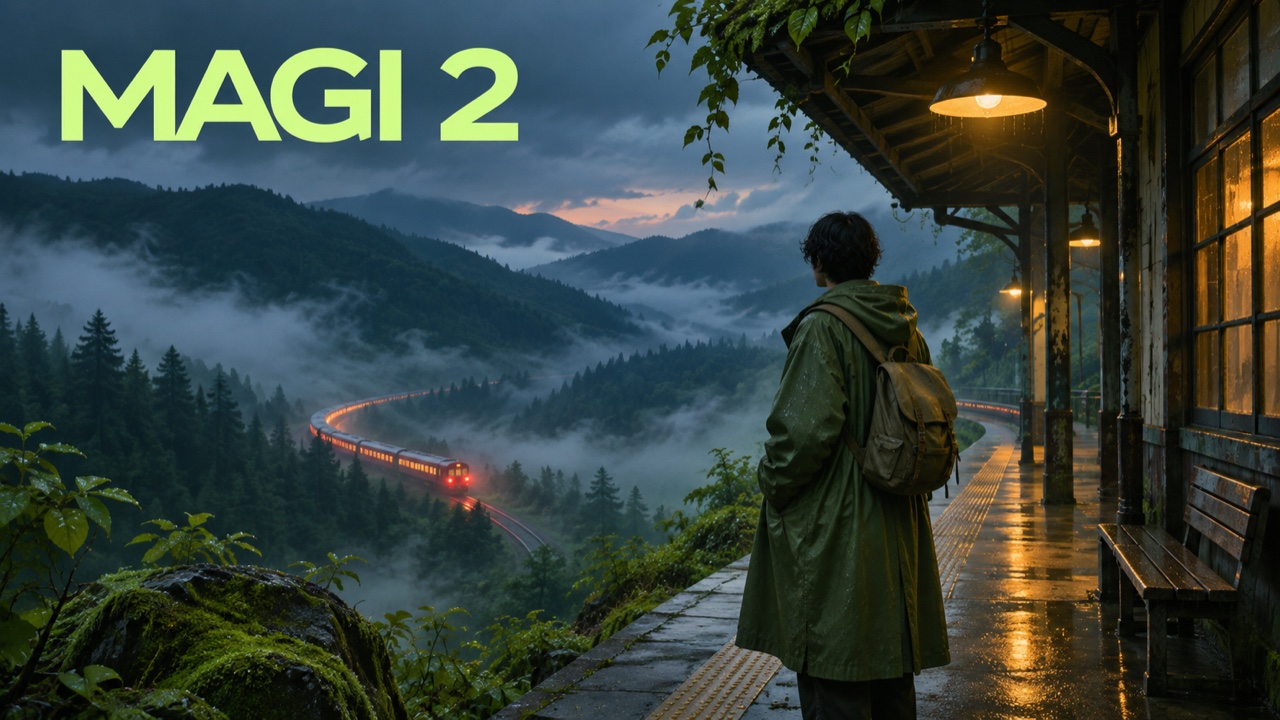
Magi 2 poster with a traveler on a mountain railway platform at dusk

What Magi 2 can do

Explore three ways to direct a scene with Magi 2, from planning the cuts to choosing the references and writing a soundtrack into the prompt.

After the Rain · Magi 2 showcase

Timeline and shot direction

Plan a longer scene shot by shot

Magi 2 can generate up to 30 seconds of 1080p video at 25 frames per second. Plan a sustained tracking shot, or describe a sequence of wide shots, close-ups, and cuts in the same prompt.

Sketch the timing as part of the direction. For a 12-second scene, open wide for four seconds, track the subject for five, then cut to a close-up for the reveal. Use the first-and-last-frame option when the composition of the opening and ending matters.
The Woodland Portrait · Magi 2 showcase

Multimodal references

Guide character, motion, and style with reference media

Combine up to 10 images, 5 video clips, and 5 audio clips in References mode. Sand AI demonstrates how reference images can guide a character’s look and wardrobe across different settings and camera angles.

Give each asset a job in the prompt. Use a portrait for the character, a location still for the setting, and a short video for the movement. Describe what should carry over from those references and what should change in the new shot.

The River Crossing · Magi 2 showcase

Native synchronized audio

Generate the soundtrack with the picture

Magi 2 generates video and sound together. It supports spoken dialogue with lip sync, sound effects that follow the action, environmental ambience, and music. Describe the sounds in the same prompt as the scene, and say when you want to hear each one.

For a quiet river crossing, ask for water under the hull, a creak as the shade lifts, and a single line once the speaker turns toward the camera. Review dialogue and timing after generation, or switch sound off for footage you plan to score yourself.

How to make a video with Magi 2

Start with a short test shot, then refine the action, framing, and sound before generating a longer version.

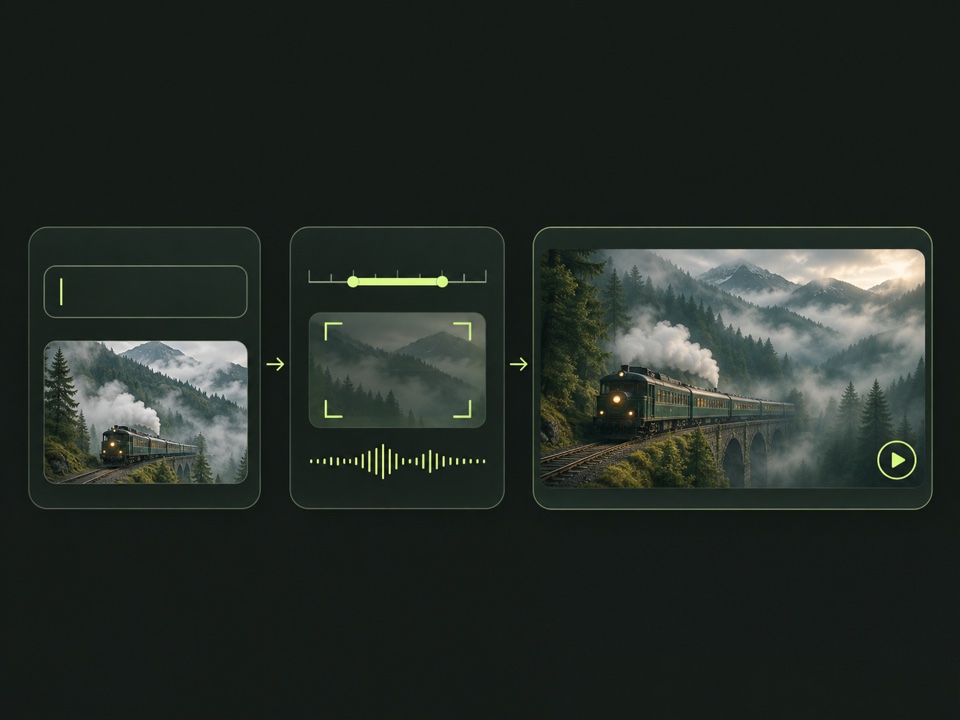
Three stages of video creation: add a prompt and reference, set timing and sound, then review the finished shot of a train in the mountains
  1. Choose an input mode

    Use Text for a scene you can describe from scratch, Frames for an exact opening composition, or References when you have material to guide the look or sound.

  2. Set duration, framing, and sound

    Start with a short clip for one action or choose a longer duration for several beats. Pick your aspect ratio in Text or References mode, then check the sound setting and credit estimate.

  3. Generate and review the video

    Watch the result in Projects. Review the opening frame, the main action, and when each sound lands. If the shot needs work, refine one instruction at a time so you can compare versions.

Magi 2 prompt examples

Try six text-to-video prompts for different projects. Each one loads into the generator so you can adapt the scene, timing, or sound before generating.

Product video

Ceramic bottle reveal

A matte ceramic bottle sits on a dark stone pedestal. Start close on its glazed texture, then pull back as a narrow band of warm light moves across the bottle. End on a clean product shot. Sound stays quiet except for a soft room tone.

Camera movement

Night train arrival

A night train glides into a mountain station in the fog. Track slowly alongside the windows as the train brakes, then stop as one door opens opposite the camera. Hear the wheels fade, followed by the soft chime of the opening door.

Character dialogue

The last bakery light

From inside a small bakery at closing time, hold a medium shot on the baker wiping flour from the counter. A figure taps at the window. The baker looks up and says, “I saved the last loaf.” Keep the rain audible outside.

Vertical social video

Orange peel in slow motion

Frame a single orange in the center of a vertical shot. Move close as a hand twists the peel over a glass, releasing a fine spray into the sunlight. End with the peel dropping into the glass and a clear ice clink.

Multi-shot scene

After-hours gallery

Open on a wide view of a dark gallery. After three seconds, cut to a close-up of a security guard switching on a flashlight. After six seconds, switch to the guard’s view as the beam reveals a silver sculpture.

Music video concept

Light over the salt flats

A lone dancer crosses reflective salt flats at dawn. Keep the camera low and glide backward as the dancer takes three measured steps. A soft percussion rhythm builds, and a warm flash of sunlight breaks through on the final beat.

Magi 2 vs. Seedance 2.5

Compare Magi 2 in this studio with Seedance 2.5 as documented by Runway Dev. Seedance 2.5 is listed here for comparison and is coming to the studio later.

CapabilityMagi 2Seedance 2.5
DeveloperSand AIByteDance
Video length4–30 seconds4–30 seconds or automatic duration
Output resolution1080p480p, 720p, 1080p, or 4K
Input modesText, first frame with optional last frame, or multimodal referencesText, first and last frames, or multimodal references
Multimodal reference limits10 images, 5 videos, 5 audio clipsUp to 30 images, 10 videos, and 10 audio clips on the text-to-video endpoint
SoundOptional synchronized dialogue, ambience, music, and effectsNative synchronized sound and dialogue

What to create with Magi 2

Explore a product reveal, plan a scene before filming, or turn a short idea into a clip for a vertical feed.

Product teasers

Start with a product still and test a reveal before committing to a shoot. Ask for a slow push-in or a change from soft side light to a highlight on a specific detail.

Storyboards and previsualization

Animate the opening and closing storyboard frames to explore how an actor enters a scene, where the camera moves, or when a cut might work.

Vertical social clips

Work in 9:16 for a full-height mobile feed or 1:1 for a square composition. Describe the action in the opening seconds and keep the key subject near the center.

Character-led stories

Use a portrait, a wardrobe reference, and a short line of dialogue to develop a character introduction or test a new scene.

Music video concepts

Try a lighting change on a musical cue, or explore how one moving shot carries the mood of a chorus or instrumental break.

Travel and atmosphere clips

Use a location still to plan a slow walk through a street or landscape. Add environmental sounds that make the location recognizable.

Magi 2 user reviews

Summaries of publicly documented hands-on tests of the Magi 2 model on other platforms.

Following a reference camera move

The creator supplied a simple camera previs as a video reference and reported that Magi 2 closely followed its path for a continuous 15-second take.

Timing cuts in a four-shot scene

In a 30-second test, three cuts fell within 0.44 seconds of the requested times and both lines of dialogue came through. One wardrobe instruction was missed throughout.

Dialogue in a continuous take

A 30-second pier scene kept both scripted lines and the same two characters. The framing jumped closer unexpectedly, and a prop disappeared during the change.

Magi 2 frequently asked questions

What is Magi 2?

Magi 2 is Sand AI’s video generation model. This online generator lets you create a 1080p clip from text, a first frame with an optional last frame, or a prompt with reference media. Sound is optional.

How long can a Magi 2 video be?

Choose any whole-second duration from 4 to 30 seconds. Short clips suit a single gesture or camera move. Longer clips give you more time to describe how the scene develops.

How are credits calculated?

Magi 2 uses 18 credits per second. A 5-second video costs 90 credits, and a 30-second video costs 540 credits. Audio and aspect ratio use the same rate.

Do I need an image to generate a video?

Text mode starts from a written prompt. Frames mode requires a first image and accepts an optional last image. References mode pairs a prompt with at least one media upload.

What can I upload in References mode?

Upload up to 10 JPG, PNG, or WebP images, 5 MP4 or MOV videos, and 5 MP3 or WAV audio files. Video and audio clips must be 2–30 seconds long, with a total limit of 30 seconds per media type.

Can Magi 2 generate dialogue and music?

Yes. With Generate sound enabled, you can request spoken lines, sound effects, ambience, or music in the prompt. Describe who speaks or when a sound occurs, then review the generated result for timing.

Can I generate a vertical video?

Select 9:16 in Text or References mode. In Frames mode the first image supplies the aspect ratio, so start with a vertical image for a vertical clip.

How do I write a prompt for camera motion?

Start with the framing, describe how the subject moves, and add a clear camera instruction such as “slow dolly in” or “track alongside the subject.” If the shot changes, describe what should happen next.

Where can I find my generated videos?

Open My projects from the left menu to check your current generation and browse completed videos associated with your account.

Ready to create a video?

Start with your own idea or adapt a sample prompt.

Open generator